Queues
Queues in Nexus
Queues are a way to space out the timing of commands for your stream. With queues, you can control the amount of events happening at once and the timing between them.
Creating a new Queue
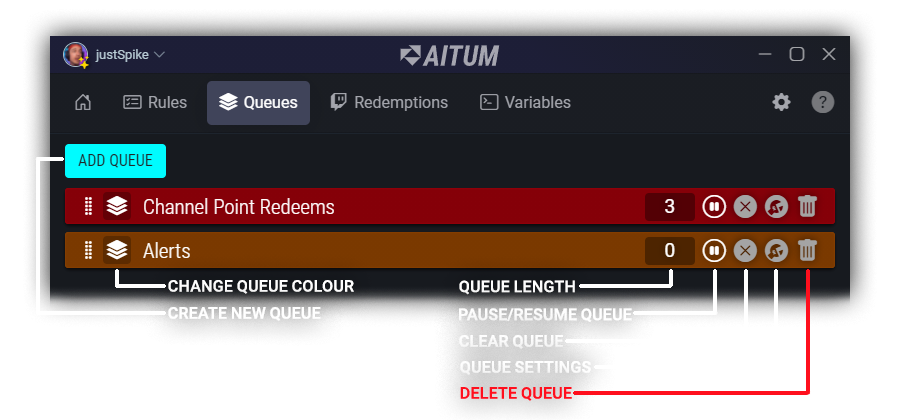
The Queue page, found in the top navigation bar of the application, is where you can create new queues. Each existing queue on this page also has quick actions available to easily asses the current state of your queues, organize them, and easily edit or delete your queues.
These actions include:
- Create New Queue which allows you to add a new queue to Nexus. More details on how to properly create a queue in the ‘What does a Queue consist of?’ section below.
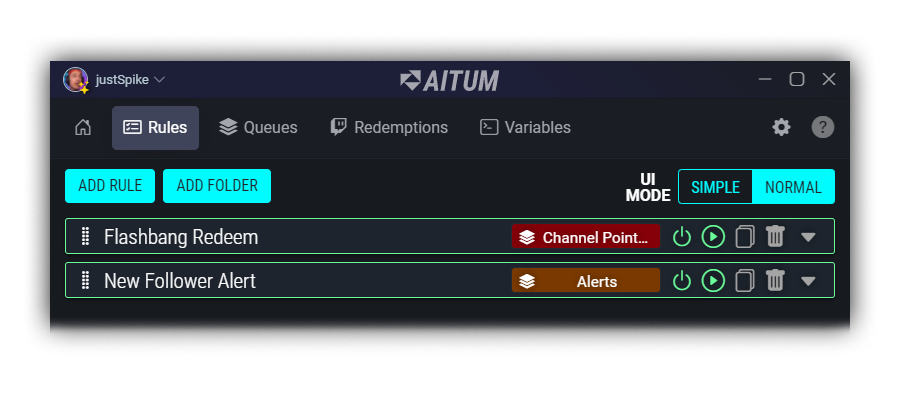
- Change Queue Color much like folders in the commands section, you can change the color of each queue to help organize the list visually. This color will also be visible in the queue selector on each command on the commands page.
- Queue Length represents the current number of commands that are waiting in queue to be executed.
- Pause/Resume Queue allows you to pause or resume a queue.
- Clear Queue clears out the current queue runners that are waiting to be executed.
- Queue Settings will bring up a pop-over menu that will allow you to change the name of a queue, change the number of Queue Runners, as well as change the Queue Time.
- Delete Queue deletes the selected queue. A confirmation pop-up will appear to help prevent any accidental queue deletions.
What does a Queue consist of?
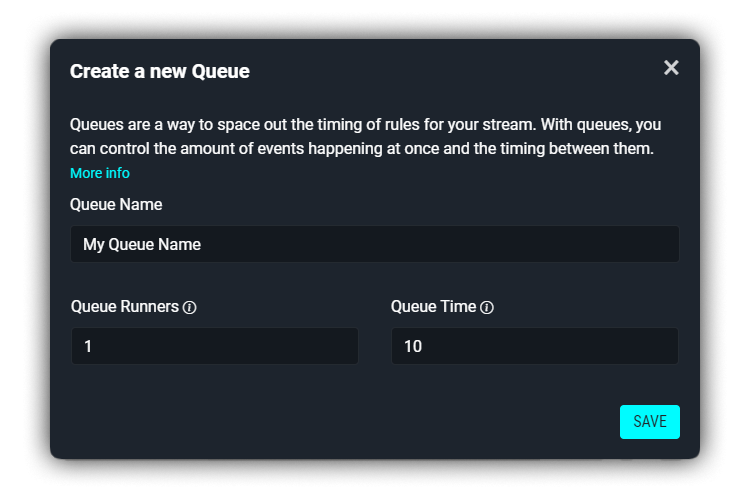
Queues consist of three main parts, a Name, Runners, and Timing.
- Queue Name is used to differentiate each queue. When adding a command to a queue, you will be prompted with a list of available queues to choose from. It’s good habit to name your queues logically so this list ease easy to choose from!
- Queue Runners determine how many commands in a particular queue can run at the same time. If you set Queue Runners to 2 or higher, the queue will allow that specified amount of commands in that queue to be executed at the same time.
- Queue Time is the time each Runner will take to process each command in the queue. For example, when running a command for a Follower Alert and the media file for the alert is 13 seconds long, you would want to set the Queue Time to 13+ seconds. This will prevent the queued alerts from playing at the same time or overlapping one another.
How to add a Command to a Queue
Step 1:
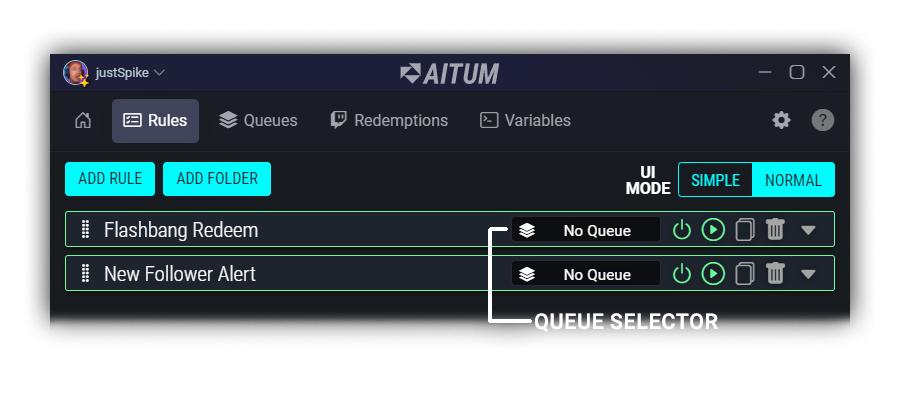
Adding a command to a queue is extremely easy. Simply navigate to the command you’d like to add to a queue and click the Queue Selector that displays “No Queue”.
Step 2:
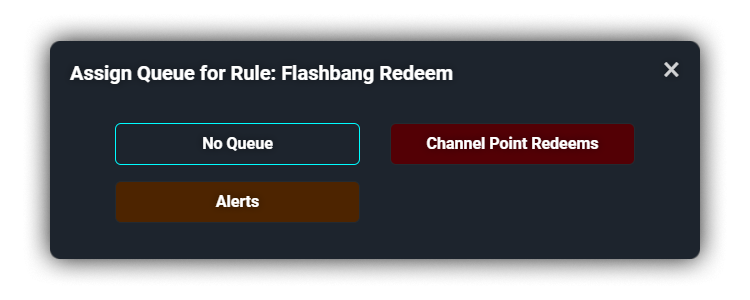
You’ll be shown a list of the available queues, choose a queue from the list to add the command to the selected queue!
Step 3:
Once you’ve successfully added a command, you will see the name of the queue that the command is a part of in the Queue Selector!