Elgato Stream Deck
The Elgato Stream Deck device is used to trigger any action inside Elgato’s Stream Deck Software from Nexus actions. This effectively allows you to automate any of the hundreds of stream deck plugins currently available.
Setting up
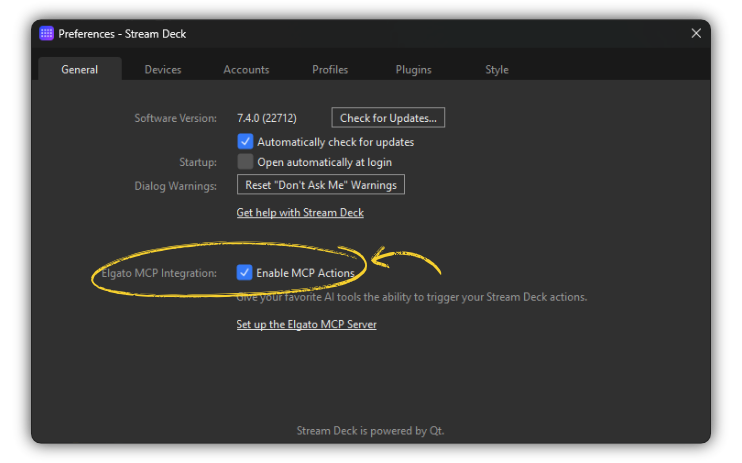
First, go open up Stream Deck Software. Go into the settings, and navigate to the General tab. Make sure the setting named Enable MCP Actions is turned on. After doing so, a new “MCP Actions” profile will have been added, which you can find in the profile dropdown at the top of Stream Deck app. Adding actions to this profile, just like you would for a normal stream deck, will allow Nexus to see and execute them.
While the MCP feature in Stream Deck Software is primarily marketed toward AI integration, Nexus does not use any AI for this integration or anything else. Because of this, this integration has the same speed and reliability as any other Nexus integration.
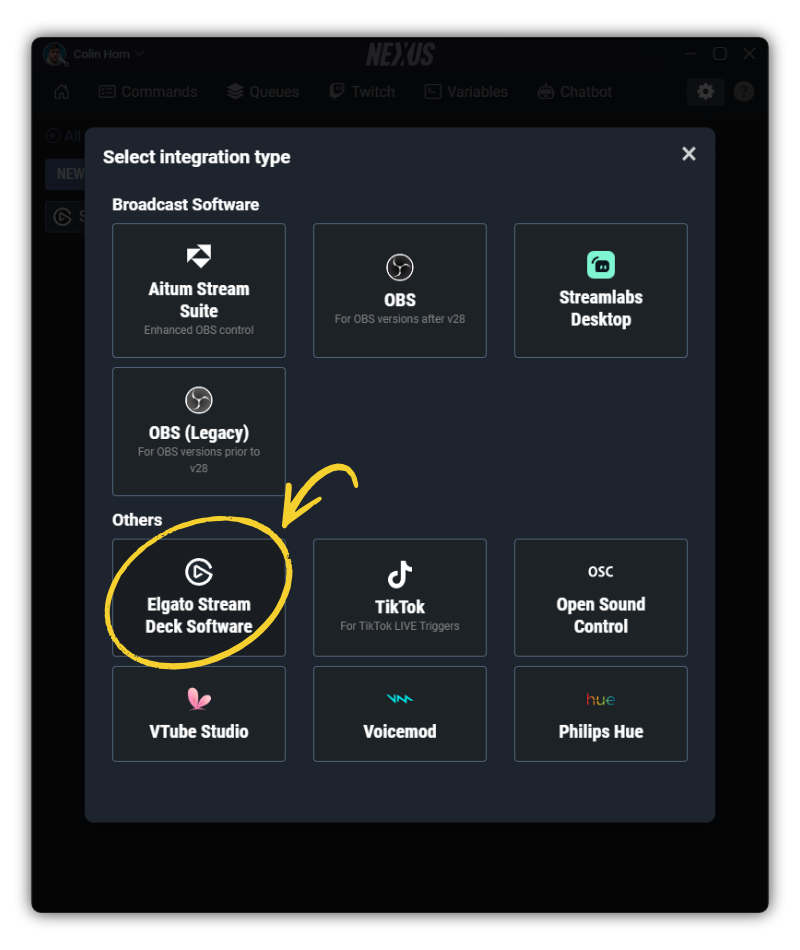
In the Nexus app, go to Settings -> Integrations and click New Integration. Select the Elgato Stream Deck Software integration type, choose a name, and select the host that you’re running Stream Deck Software on. Then save the integration.
Now you can go into a Command, add a new Action, select the Stream Deck Software device and select the Run Stream Deck Action action type. Now you can select any of the Stream Deck actions inside the MCP Actions profile inside Stream Deck Software.
To enable MCP in Stream Deck Software, you need to own a Stream Deck or the Stream Deck Mobile Pro subscription for the stream deck mobile app. This is a limitation on Elgato’s side.
Actions
Run Stream Deck Action
Use this to trigger a Stream Deck MCP Button.
Fields:
| Field | Required | Field Type | Allows Variables | Description |
|---|---|---|---|---|
| Action | Yes | Dropdown | No | Trigger Stream Deck Button |