Actions
Actions in Nexus
Actions are where the real magic happens in a command. When your trigger has picked up an incoming event, and all of your checks succeed, the command goes on to execute your actions. Every action is a single event that is processed and sent out to a device.
A command can have multiple actions, which are executed in order from top to bottom. You can reorder an action using the Drag Handle icon on the left side of the Action header.
When you add a new action, you’ll need to choose a device that you have available. Then, you can select an Action Type that we support for that device. For example, if we picked Twitch as a device, we can pick Slow Mode On as an action. Once you select a action type that you wish to use, you can then fill in any of the required or optional fields for that action.
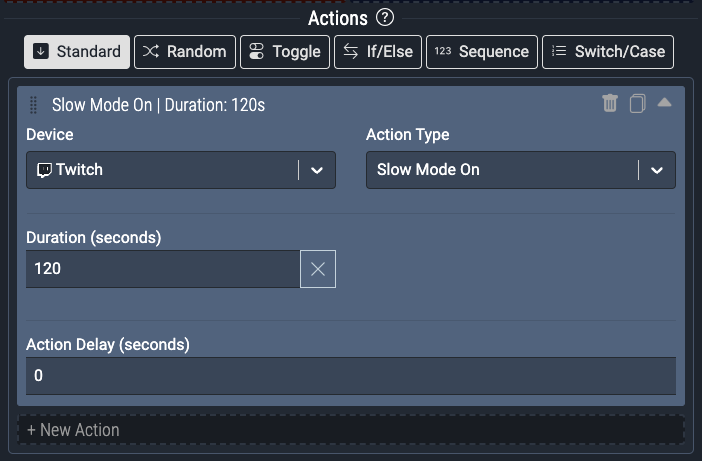
Action Fields
Like triggers, most fields in actions will have a button with a gear icon to set additional options for that field, allowing you to switch the Input Mode. You can switch the input mode to Variable to use a global variable or local variable as the value of a field. When the action runs, the value of the variable at the time of execution gets passed along to the device.
Local variables are unique for each command, and represent data fields from the triggers. If you select a local variable on an action field, it will use the value of the trigger field corresponding to the local variable and use it as the output value for the action field.
For example, if you have a Twitch Follow trigger in your command and an OBS Set Text Source Properties action type, you can set the text field of the OBS action to the “Twitch: Username” Variable. When someone follows your Twitch channel, the text source in OBS will be set to the new follower’s username:
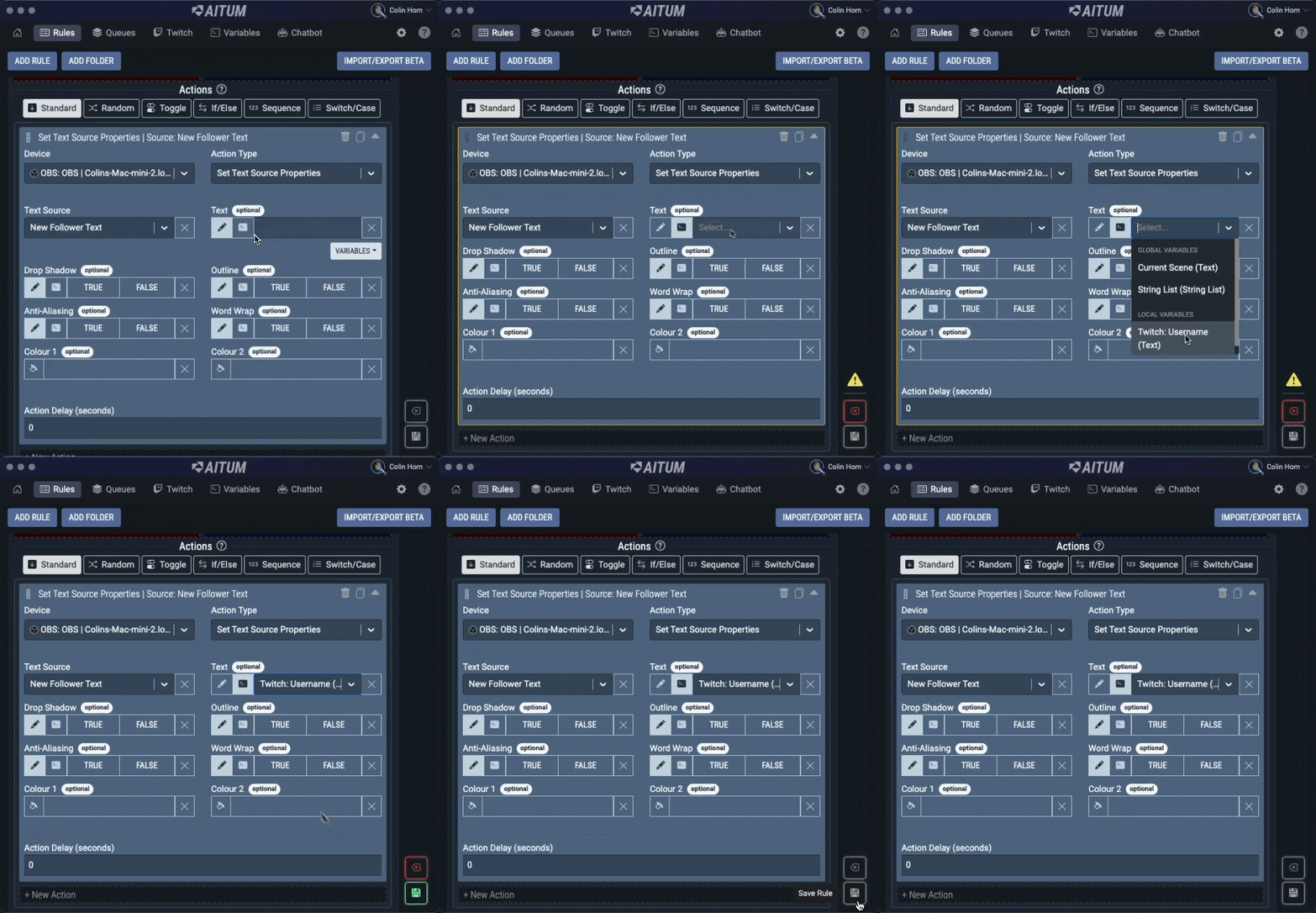
If the above example command is triggered by an Elgato Stream Deck button, or by pressing the Test Actions button on the command, rather than being triggered by Twitch, the Twitch: Username variable will use the fallback value as described on the Triggers page!
String templating
In some action fields, it is possible to mix both variables and free-form text. This is called string templating in Nexus.
Here’s an example of the OBS Set Text Source Properties action’s Text field which allows string templating, using a local variable from a Twitch Follow trigger:
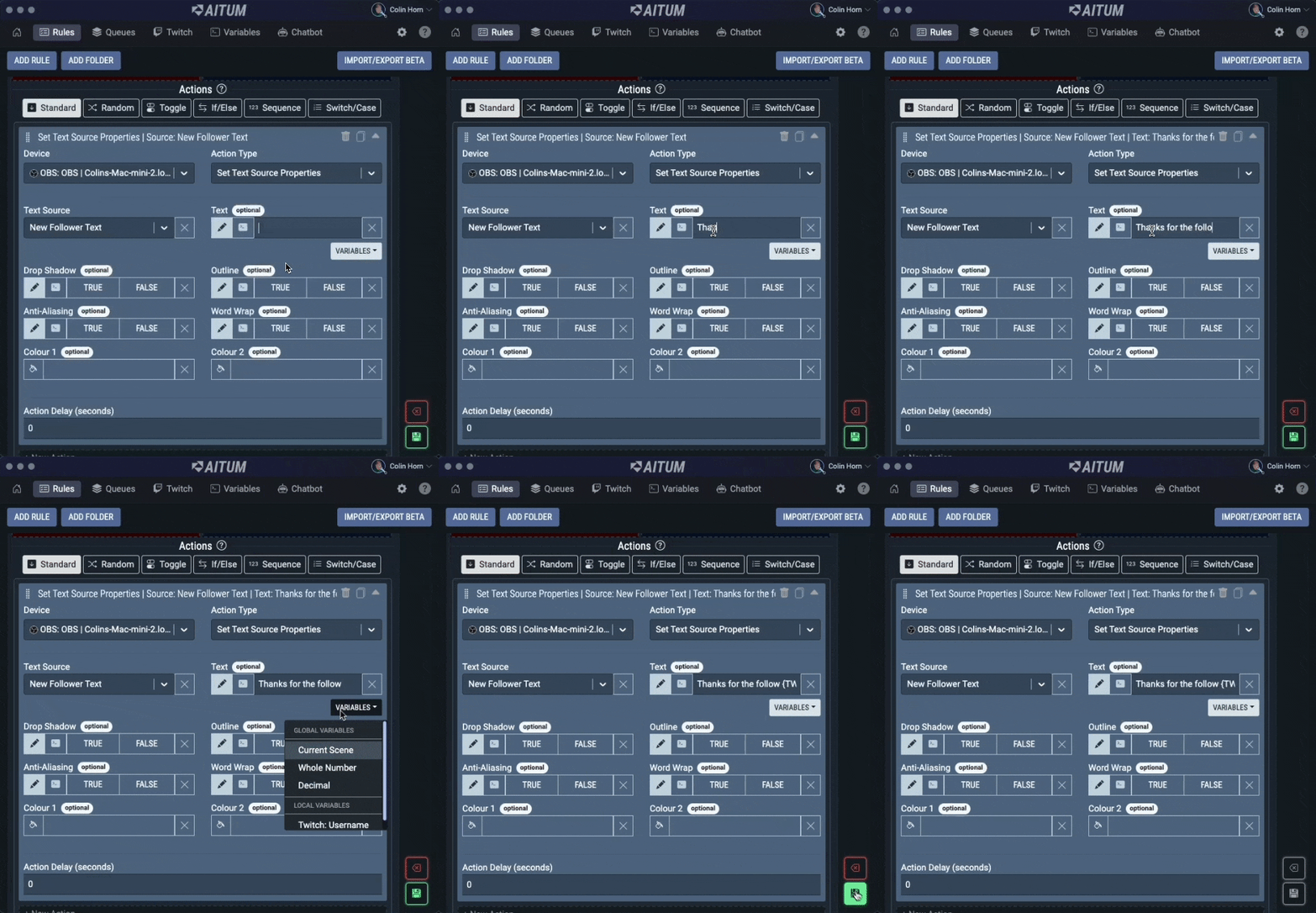
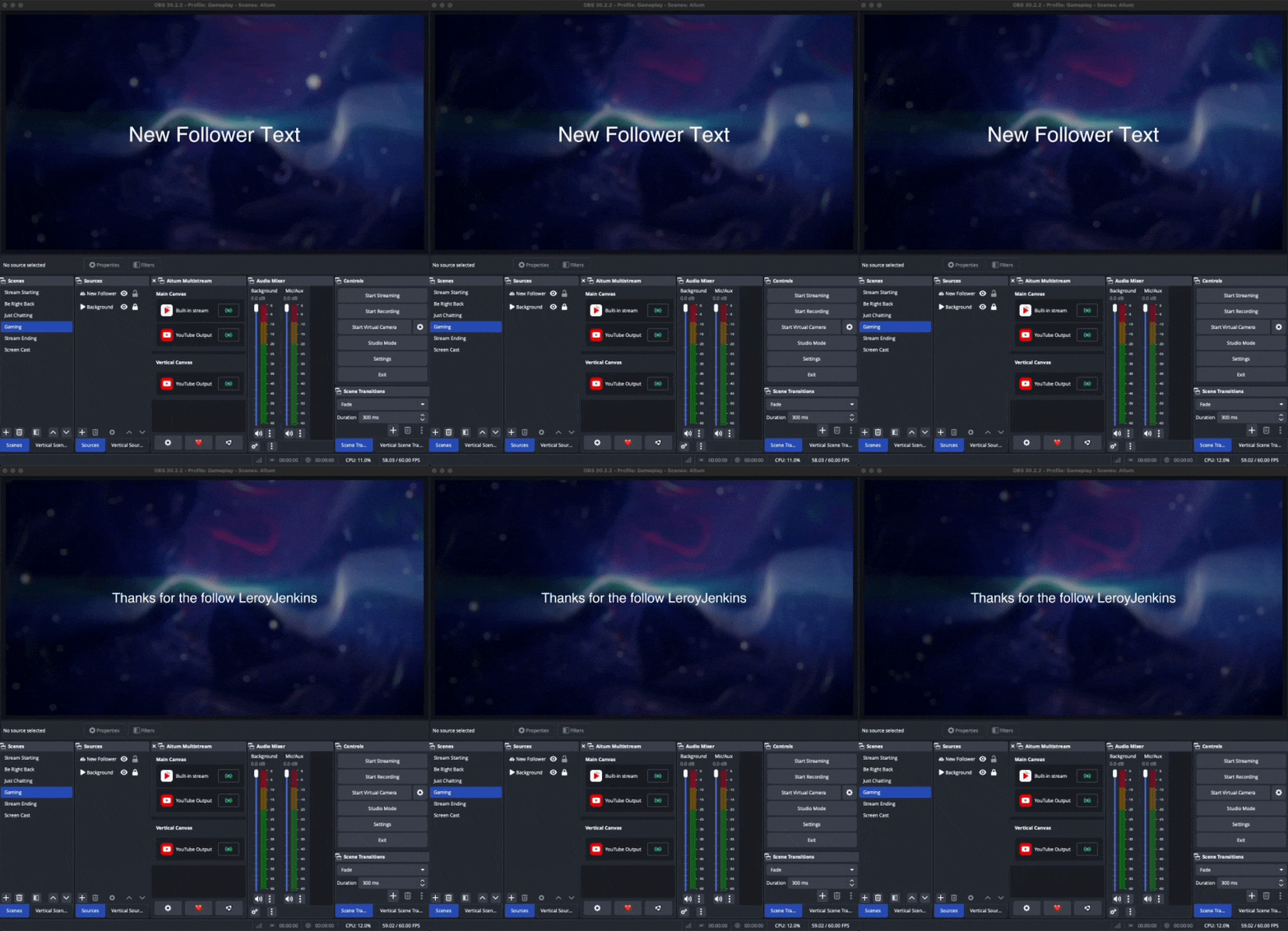
By using the Global and Local dropdowns (for global variables and local variables respectively), you can insert variables into the field. When the command executes, the template strings are replaced with the associated variable. In the example case above, when a user called “LeroyJenkinsFan” follows me on Twitch, the {TWITCH:username} string would be replaced, and the text source in OBS would be set to “Thanks for the follow LeroyJenkinsFan”:
Execution Modes
Before creating any actions, you will need to specify an Execution Mode for your command. The execution mode determines how your actions are executed, and allow you to create commands both simple and advanced in just a few clicks. There are a number of execution modes available, and switching between them will change the way that you configure the actions for the command.
Normal Mode
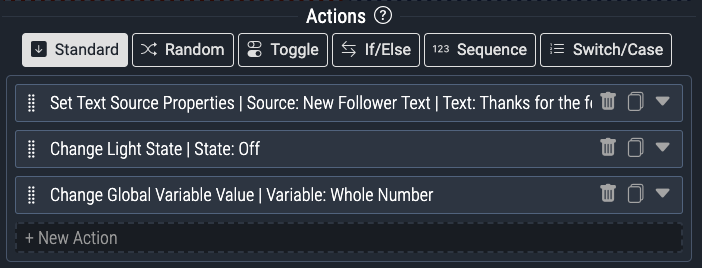
The Normal execution mode is the standard, default execution mode for commands. All actions you specify will be executed.
In this example, all three actions will fire at the same time when the command is triggered:
Random Mode
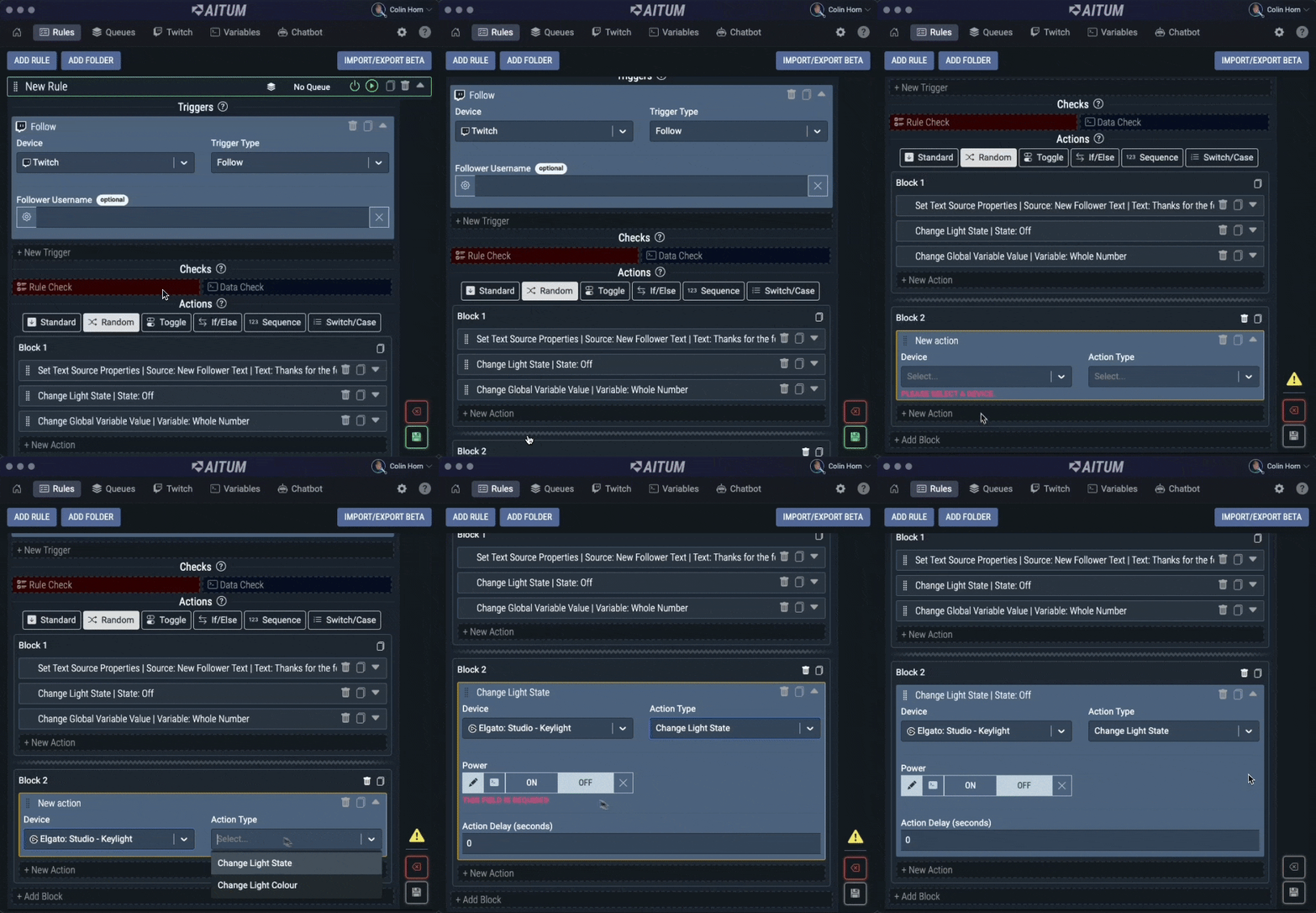
The Random execution mode allows you to define separate blocks of actions. These are called Options in Nexus. You can create as many options as you’d like! When the command is triggered, one of the options will be picked randomly and all of the actions within that option will be executed.
In this example we create two options to be randomly chosen from anytime the command is triggered:
Toggle Mode
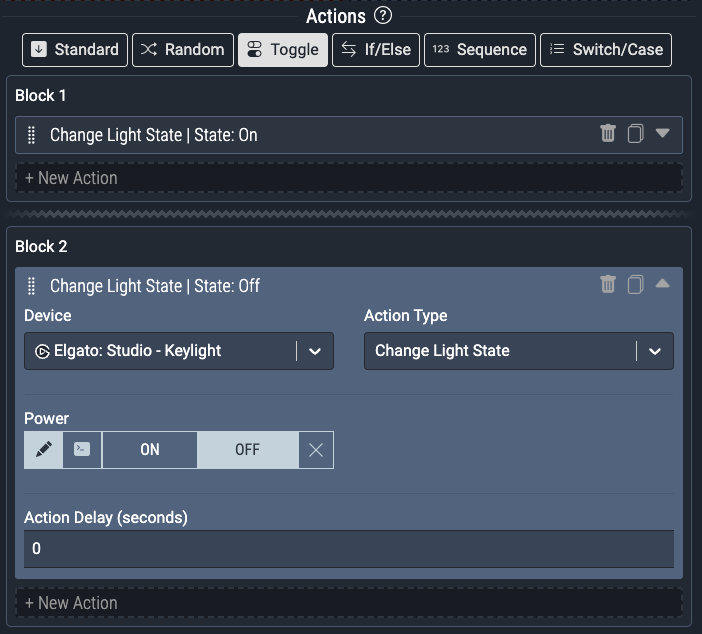
The Toggle execution mode has two separate blocks, defined as Step 1 and Step 2. Any number of actions can be added to each step, and actions can be dragged between steps. Each time the command executes, it will go back and forth between the steps and execute the actions in the step.
This example has an action to turn on an Elgato Keylight Mini in Step 1, and turn off in Step 2. Allowing the command to toggle the keylight on and off:
If/Else Mode
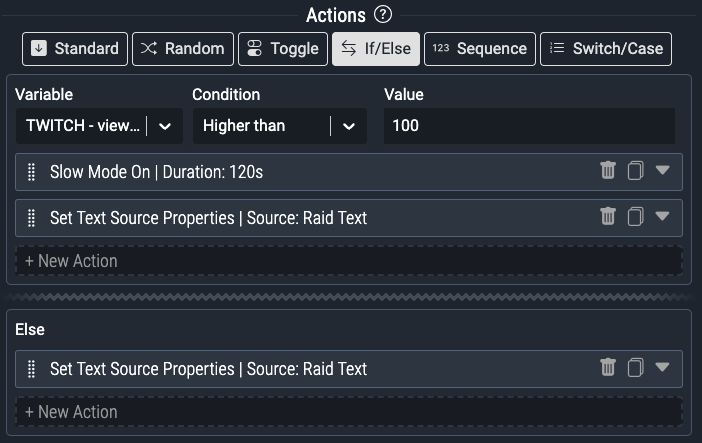
The If/Else execution mode has two separate blocks, defined as Then and Else. The UI is similar to a check, and most comparisons used in those can be used here, against a global variable or a local variable. If the comparison is met, then the actions in the Then block are executed, otherwise the actions in the Else block are executed.
In the example below:
IF the amount of Twitch raiders is higher than 500
THEN slow mode is activated
ELSE if it is not higher than 500 an announcement is posted in chat to welcome the new raiders!
Sequence Mode
The Sequence execution mode is similar to toggle in that it has blocks defined as Steps. However, there are some notable differences. With the sequence execution mode, you can define any number of steps, and any number of actions can be added to a step. Every time the command executes, the actions inside the next step are executed. Once the end of the sequence is reached, it wraps back around the the first step. If there are no actions in a step, nothing happens when the command executes that step.
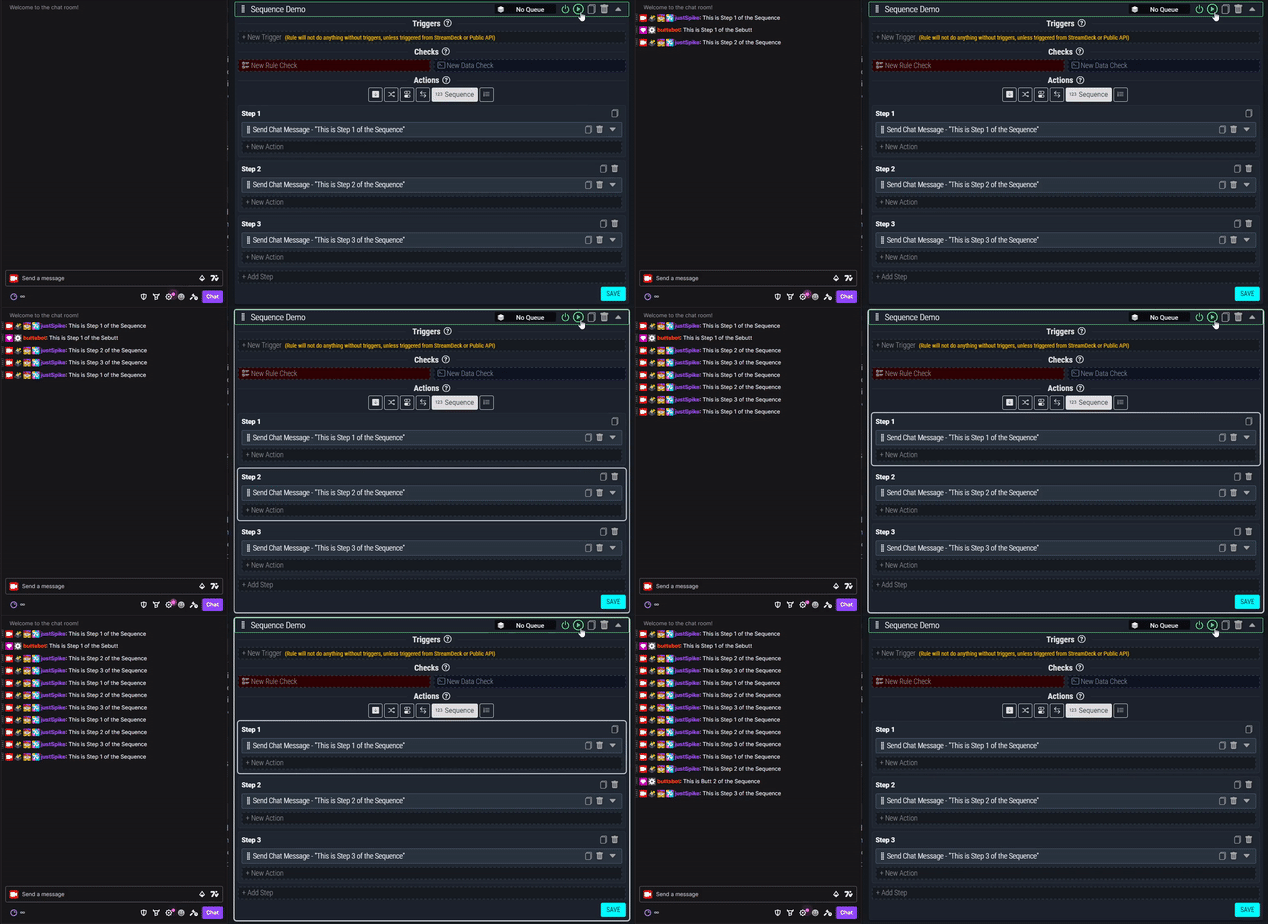
The current step is saved when you close Nexus. For example, if step 3 is executed, and then you relaunch Nexus and the command is triggered, step 4 will be executed.
Switch/Case Mode
The Switch/Case execution mode is like an extended version of the If/Else mode. You still select a local or global variable to compare, but you can add any number of options to compare the value against. If the command gets triggered and the value of the variable matches one of the option values, the actions inside that option get executed. If the value of the variable matches none of the options, the Default block gets executed. If there are no actions in the default block when it is triggered, nothing happens.